1. Pick how you want to start
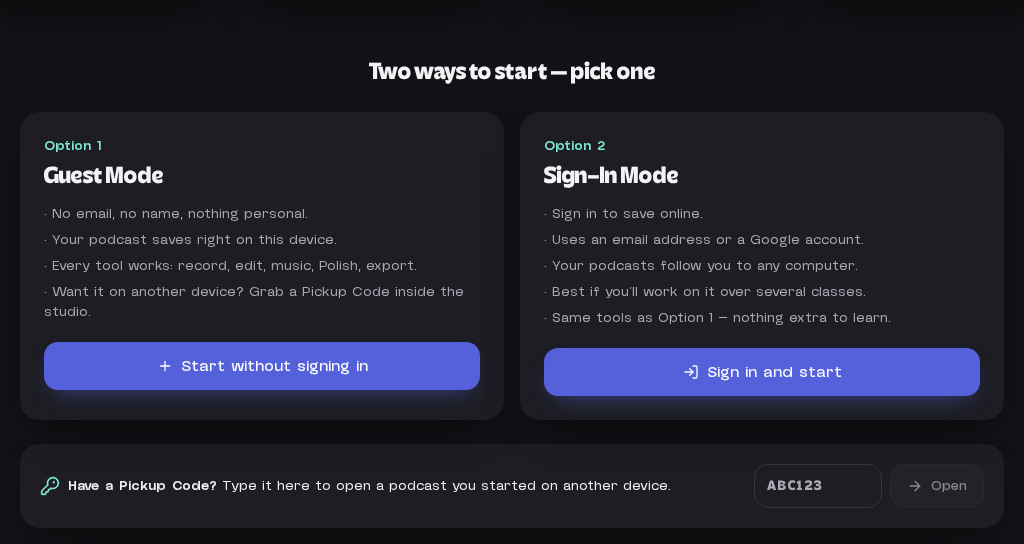
Guest Mode needs no account and saves on this device. Sign-In Mode saves online so you can open it anywhere.
'%3e%3cpath%20d='M-22666.3-22964.5v70.668l272.984-21.764v-113.635H-22561.2Z'%20transform='translate(22896.818%2023107.836)'%20fill='%23fff'/%3e%3cg%20transform='translate(121.5%2055.5)'%3e%3cpath%20d='M245.84,125.9c-9.141,0-11.74,4.109-11.74,7.631v.671c0,3.69,2.851,8.134,11.74,8.134,8.973,0,11.74-4.277,11.74-7.967v-.839C257.581,129.925,254.813,125.9,245.84,125.9Z'%20transform='translate(-37.785%20-20.321)'%20fill='%23ef404c'/%3e%3cpath%20d='M348.914,78.5H333.4v5.115h15.514c3.606,0,4.445-1.09,4.445-2.6v-.084C353.359,79.339,352.52,78.5,348.914,78.5Z'%20transform='translate(-53.812%20-12.67)'%20fill='%23ef404c'/%3e%3cpath%20d='M351.765,63.529v-.084c0-1.509-1.09-1.845-3.69-1.845H333.4v3.941h14.675C350.675,65.458,351.765,64.954,351.765,63.529Z'%20transform='translate(-53.812%20-9.943)'%20fill='%23ef404c'/%3e%3cpath%20d='M403.386,126.5H395v15.6h8.386c11.824,0,12.663-5.367,12.663-7.8v-.335C416.049,131.448,415.126,126.5,403.386,126.5Z'%20transform='translate(-63.755%20-20.418)'%20fill='%23ef404c'/%3e%3cpath%20d='M243.193,0,0,150.947v41.93H41.93l343.824-50.316V0Zm80.589,40.923h49.477V52.412H344.411V55.6h28.512V66.836H344.411v3.522h29.1V81.931H323.782V40.923Zm-65.159,0h45.2c12.5,0,15.6,4.612,15.6,9.225v.335c0,4.612-4.025,7.3-8.134,8.134,5.283.922,10.566,3.606,10.566,10.9v.419c0,6.457-4.445,11.992-18.03,11.992h-45.2Zm-85.034,93.42H124.112V93.252h20.965v26.416h28.512Zm67.842-19.791c0,8.47-4.277,20.629-31.95,20.629h-2.767c-27.674,0-31.95-12.16-31.95-20.629v-1.677c0-8.638,4.193-20.378,31.95-20.378h2.767c27.757,0,31.95,11.824,31.95,20.378Zm65.83-2.18c0,8.218-3.187,22.726-30.525,22.726h-2.767c-27.338,0-30.441-14.508-30.441-22.726V93.336h21.049v16.856c0,4.612,1.929,9.476,10.734,9.476h.084c8.638,0,10.734-4.864,10.734-9.476V93.336h21.049v19.036Zm66.752,2.1c0,10.231-5.535,19.959-30.776,19.959H310.28V93.336h32.873c23.481,0,30.776,8.805,30.776,19.455v1.677Z'%20fill='%23ef404c'/%3e%3c/g%3e%3c/g%3e%3c/svg%3e)

Tutorial
Ten short steps with real pictures from the studio. Follow along on a Chromebook, phone, or tablet.
Guest Mode needs no account and saves on this device. Sign-In Mode saves online so you can open it anywhere.
Type your title in the box at the top left. It shows on your saved list and on the file you download.

Pick your mic from the first list and where the sound comes out from the second. Headphones stop echo.

The red button starts recording on the selected track. Press it again to stop. The bar beside it moves as you talk.

Your take appears as a block with sound waves. Press play, or tap the Spacebar, to hear it. Rewind jumps to the start.

Click a take, then use the little buttons: undo, redo, split, cut, copy, paste, delete, fade, volume. Hover any button to see what it does. Drag the ends to trim or fade.

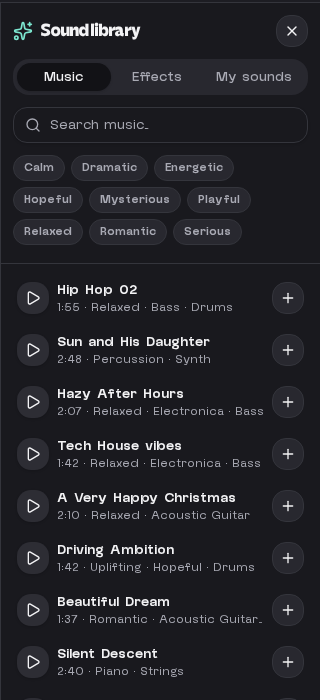
Open the Sounds panel from the top bar. Browse music by mood, effects, or your own uploads. Play to preview, plus to add it to a track.
Turn on Polish sound to clean up your recording. Less hiss cuts background buzz, Clear voice sharpens speech. Both are on by default.

Press Save whenever you pause. In Guest Mode, a Pickup Code lets you reopen it on another device. Signed in, it saves to your account.

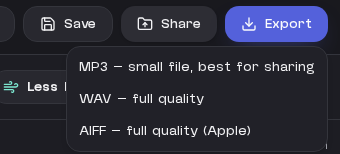
Export gives you an MP3 for sharing, or WAV and AIFF for full quality. Share sends it to your teacher's Google Drive folder.